
CLASSROOM TIPS
Getting Started with the
Preply Classroom 🎓
Quick tips to set up your classroom and try our main tools
Why use the Preply classroom?
Remember that for the smoothest Preply Classroom experience, we recommend using the latest version of Google Chrome.
You can enter the classroom by clicking on the "Classroom" tab at the top of your Preply dashboard:

This will take you to the Demo classroom, where you can test all features even before you have any lesson bookings.
Before joining, you'll see a preview screen where you can test your camera, microphone, and audio source. Don't skip this — a quick check saves you from losing valuable lesson time to technical hiccups.
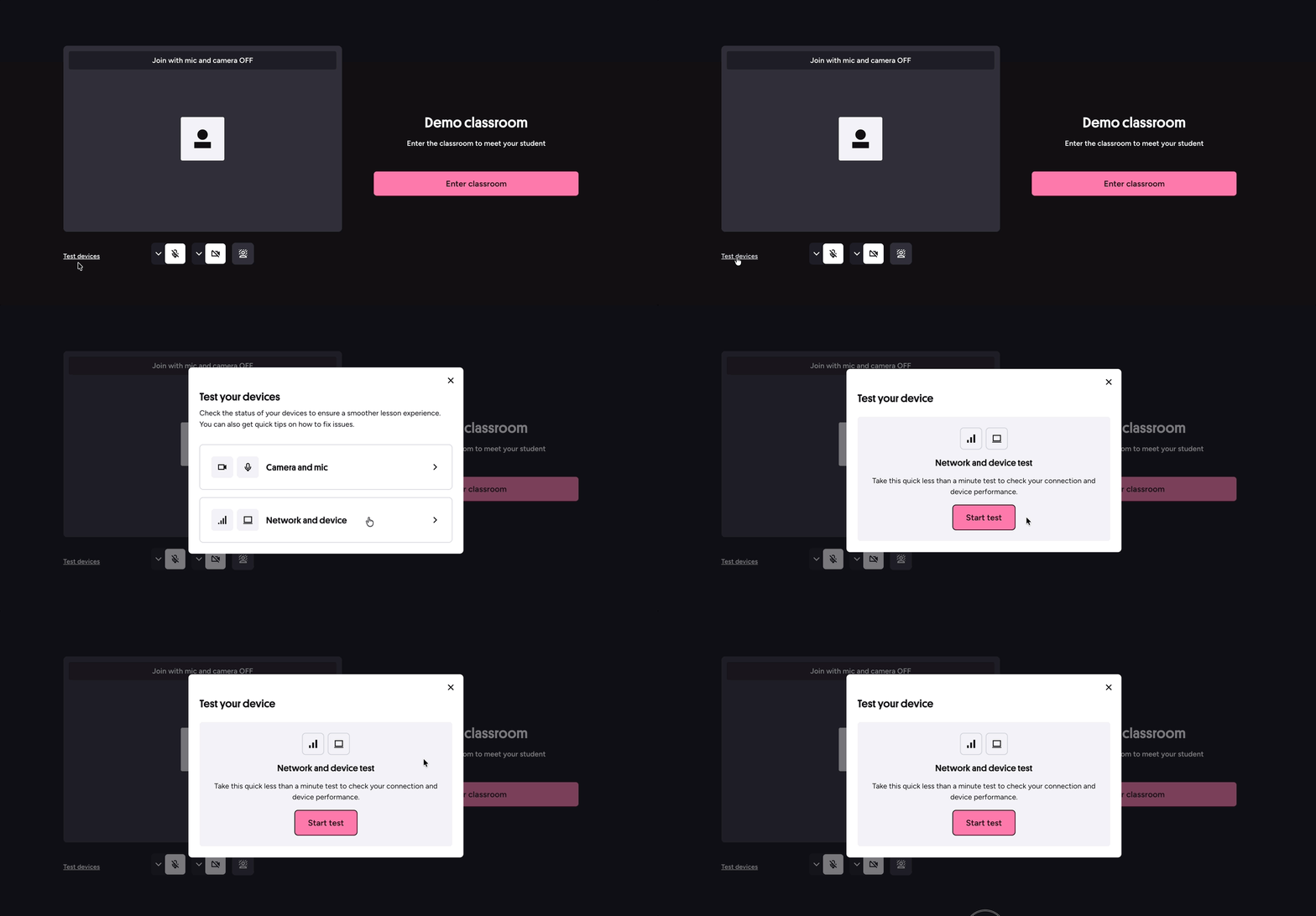
When you are ready to prepare a lesson for a student, use the icon in the top-left corner to check your students' individual classrooms:
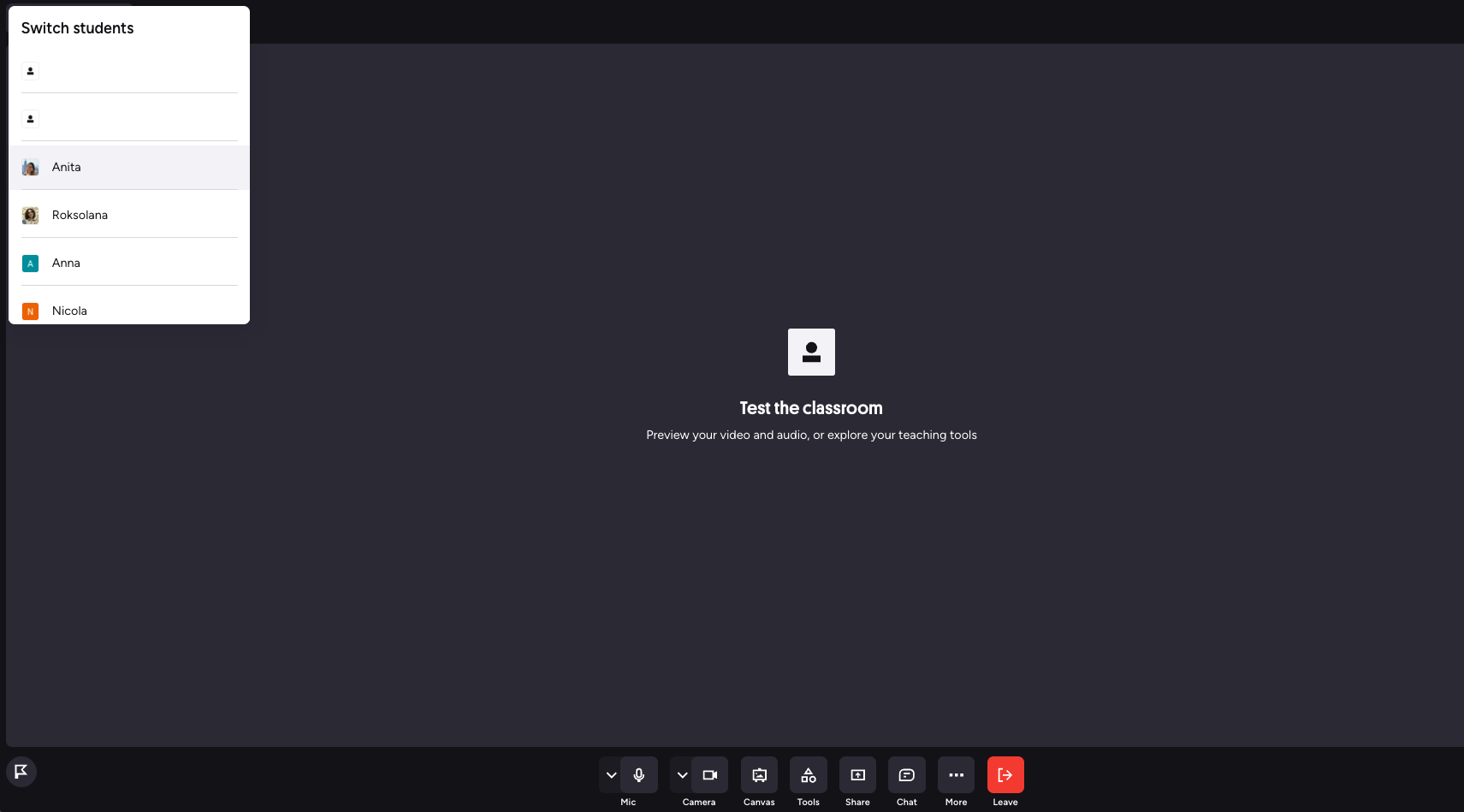
You can also prepare content in Preply Canvas — exercises, notes, or prompts — before your student arrives.
Classroom tools
You can find all the teaching tools at the bottom of your classroom screen:
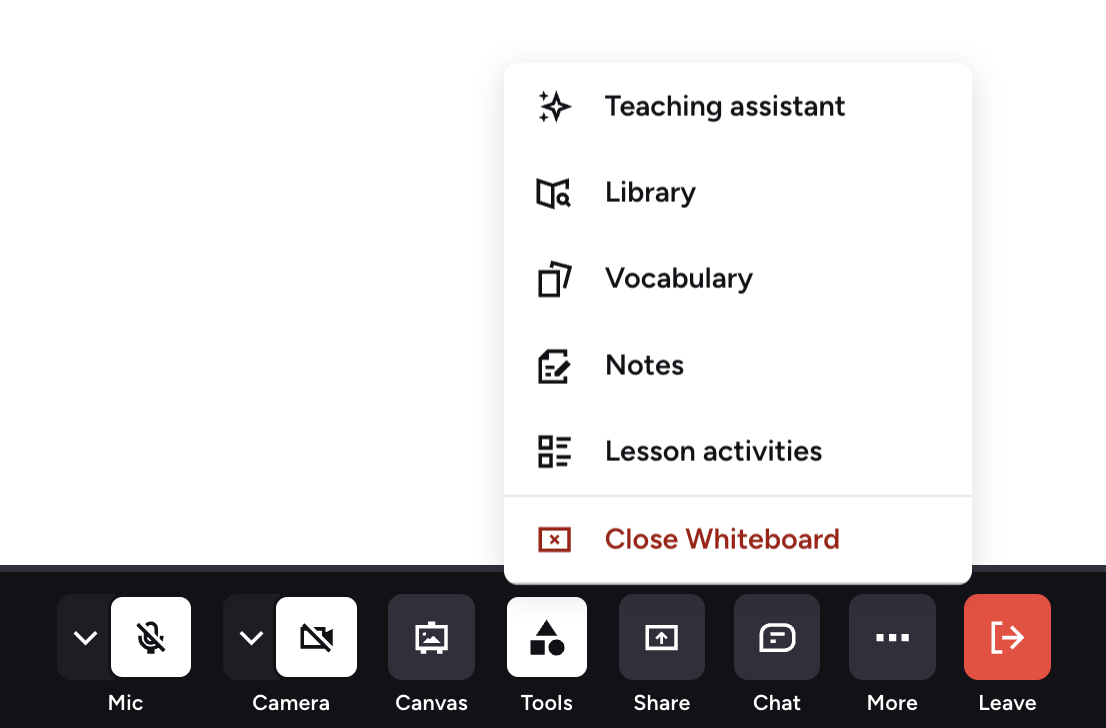
The best ways to share materials is by using Preply Canvas or screen sharing:
Unlike screen sharing, Preply Canvas is fully interactive — you and your student can write and edit together in real time. Students can also access it between lessons, making it a great tool for independent practice and revision. |
If you want to draw or move images around, you can use the Whiteboard:
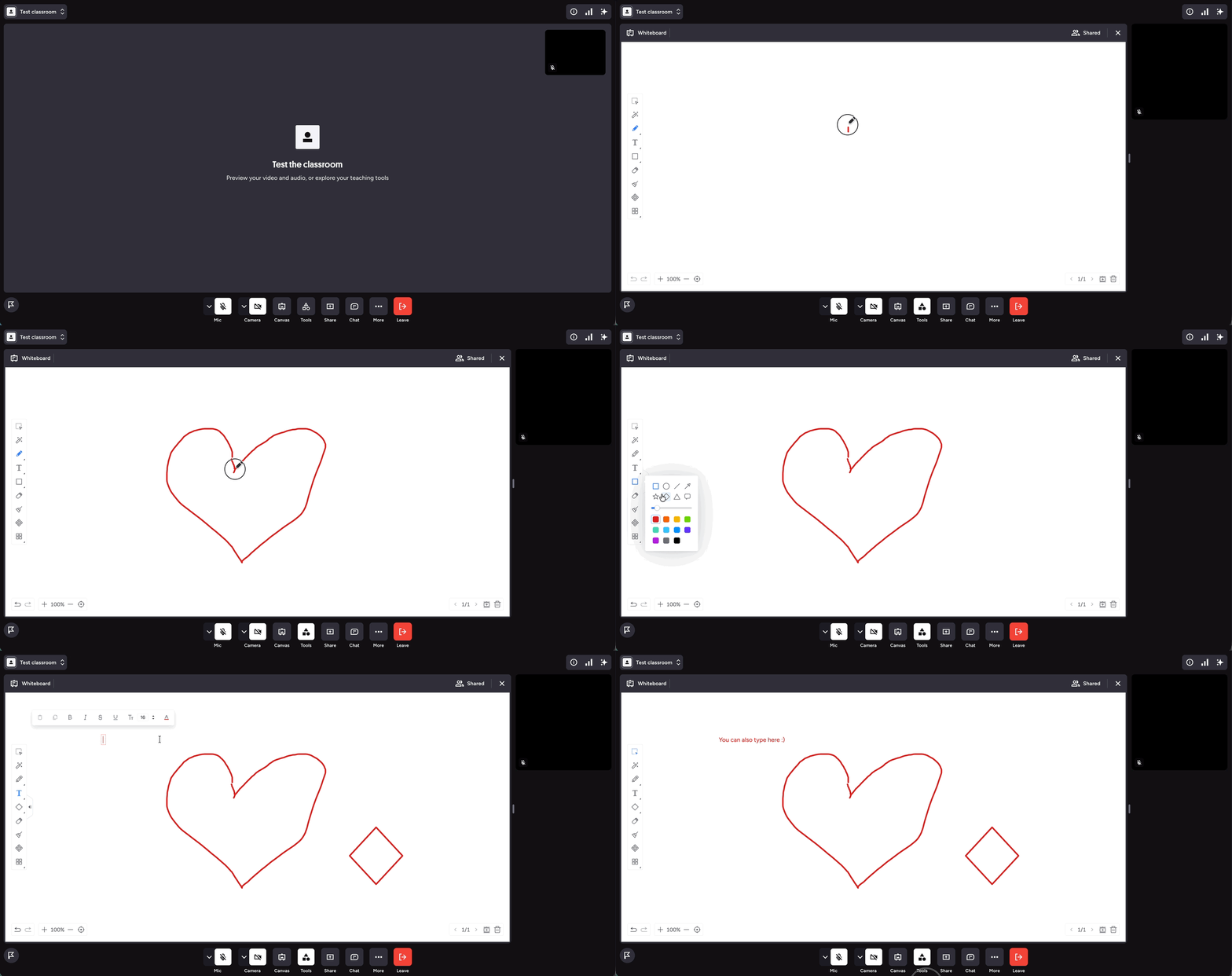
Please note that students will have to export the whiteboard to access it outside of lesson time. You can also save it for them and share it in the chat:
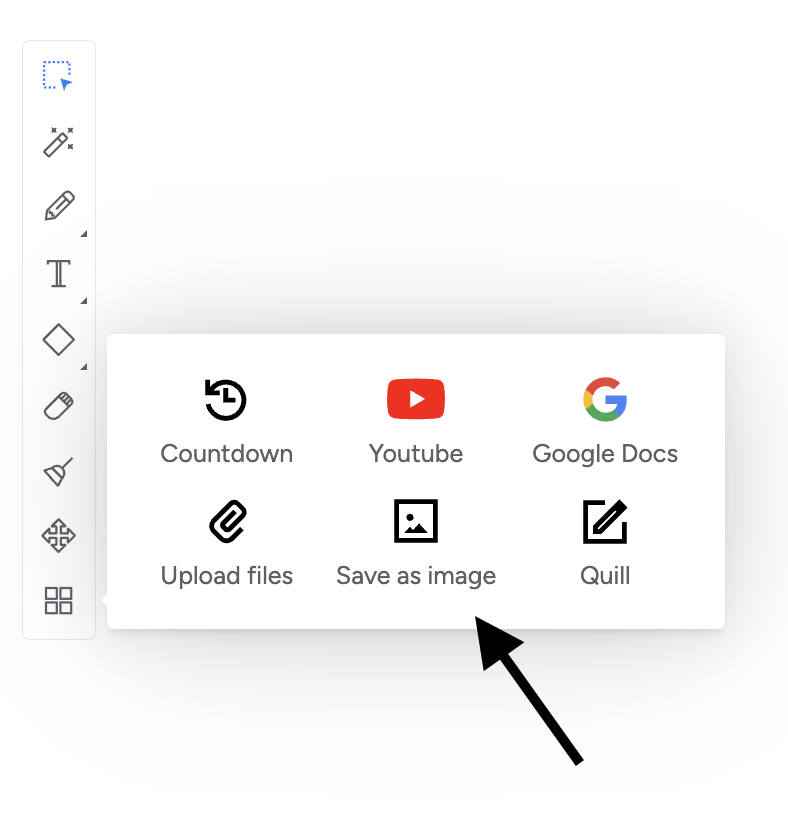
What other tools do we have in the classroom and how can you use them?
| Tool name | What it looks like | Who's it available for? | A pro tip 💡 |
| Chat A tool to share files and short messages before, during and after lessons. |
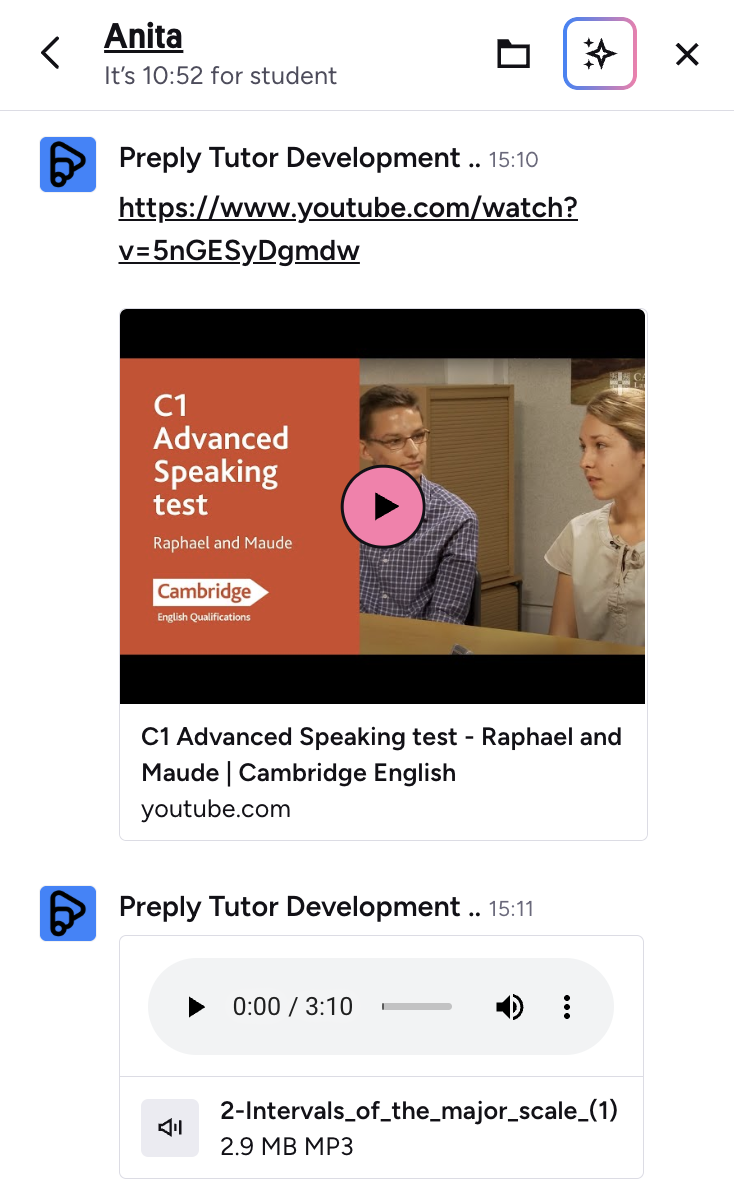 |
Everyone | The chat is great for quick communication, but for sharing new vocabulary, grammar and other learning material, we recommend using Preply Canvas because it creates an organised record of learning that both you and your student can come back to any time. |
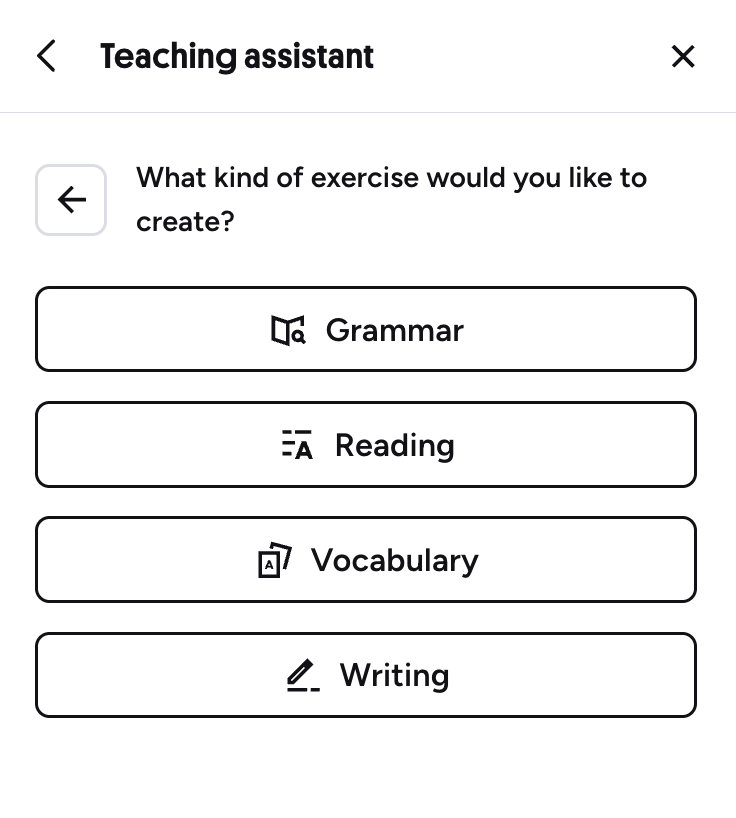
| Teaching Assistant An AI-powered exercise generator to prepare grammar, vocabulary, reading or writing exercises |
 |
All language tutors |
Make sure you give plenty of context about your student in the "Additional details" box so that the task can be more personalised and relevant to your students needs and interests. If you are interested in learning more about creating practise tasks, check out this webinar. |
| Library A bank of live lesson materials |
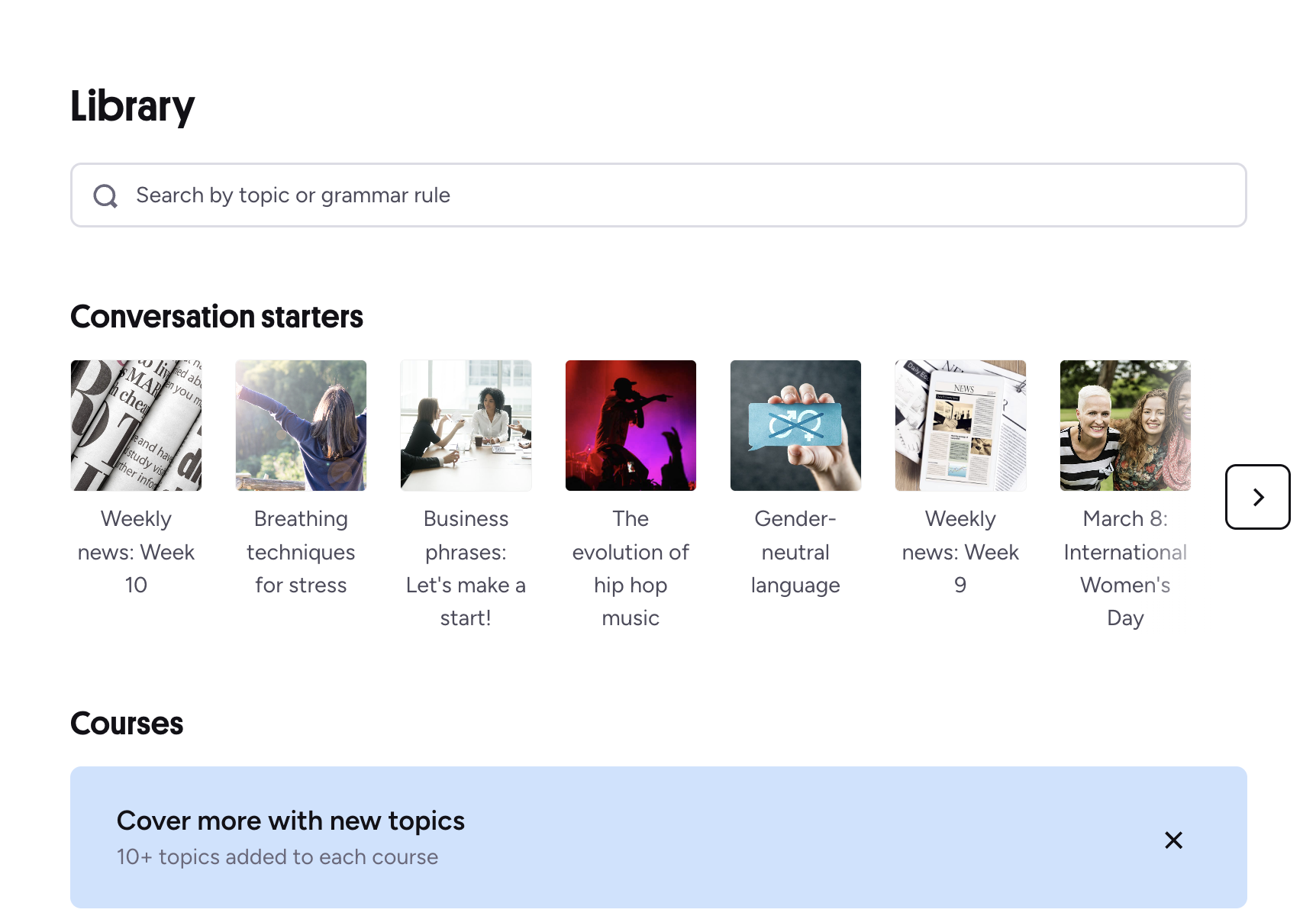 |
English and Spanish tutors | Involve your students in making decisions about Library courses. The more ownership the student has over the content, the more engaged they will be. |
| Notes A tool to keep a record of what you covered in class, lesson objectives, errors, etc. |
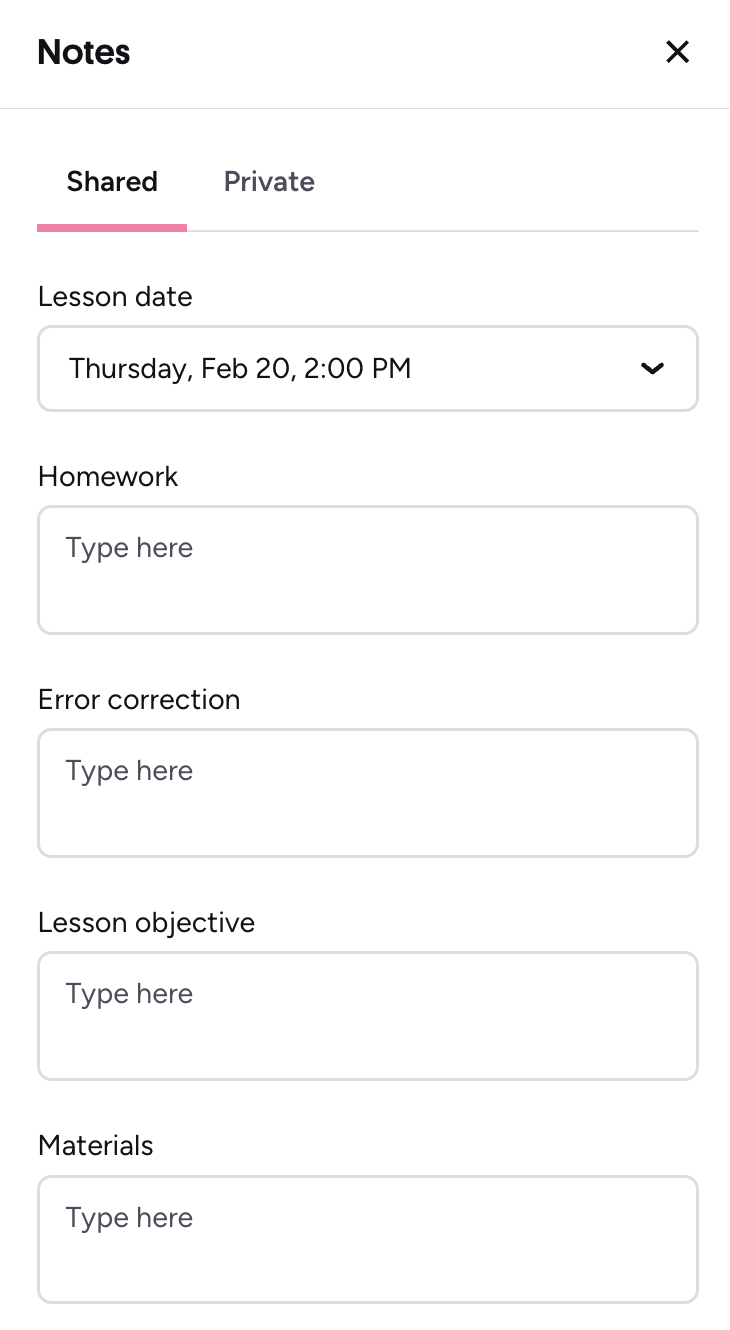 |
All tutors | At the end of your lesson, agree on the next lesson's objective together with your student. It will automatically copy as the objective of the next lesson to keep you both on track. |